
STARS Emergency Link Centre
The STARS Emergency Link Centre (ELC) is our 24-hour emergency medical communications centre.

STARS VC User Guide
User guide for GoodSAM application
GoodSAM is a secure video-link solution that is used by jurisdictions both in Canada (BCEHS) and internationally. It is a simple, user-friendly web application that does not require users to download anything in advance. Users simply receive a text message or email with a link, click, and a secure video connection is established.
STARS Emergency Link Centre (ELC) uses GoodSAM as part of our suite of services to provide critical care anywhere. GoodSAM is used to link the STARS transport physicians (TPs) and other specialists with other healthcare providers – enabling them to securely transmit a live video feed of a patient as part of a critical patient consultation.
Download a PDF version of this User Guide.
Download the Quick Start Guide.
Note GoodSAM may be used by mobile device, tablet or laptop (via email link).
The User Guide below is divided into three sections:
- Transmitting Video (users at patient-side)
- Receiving Video (Transport Physicians and Consultants)
- Troubleshooting
Transmitting Video
Physicians, paramedics, or other healthcare providers who are caring for a patient and need to visually communicate a patient’s condition will use their mobile device to transmit video to whomever they are consulting with. Typically, the provider initiating the video consult is already on the phone with the consultant, and both parties feel that a video link would be clinically beneficial to illustrate a patient’s condition or provide real-time procedural support. Verbal communication is maintained through a telephone connection, while video is transmitted through the GoodSAM web link sent by STARS ELC.
Instructions
Step 1
- The STARS ELC will request the mobile number/email of the device that will be used to transmit video for the video consult.
- If the users are on a landline that is not in the patient’s room, the STARS ELC will call the mobile number to transfer the consult call to the mobile device. Answer the call and select speaker phone on the mobile device. It is important to be cognisant of the communication and verbal transfer of private patient information while on speaker phone.
- Once in the patient’s room, the STARS ELC will read a brief consent statement on the speaker phone prior to the initiation of the video feed.
Step 2
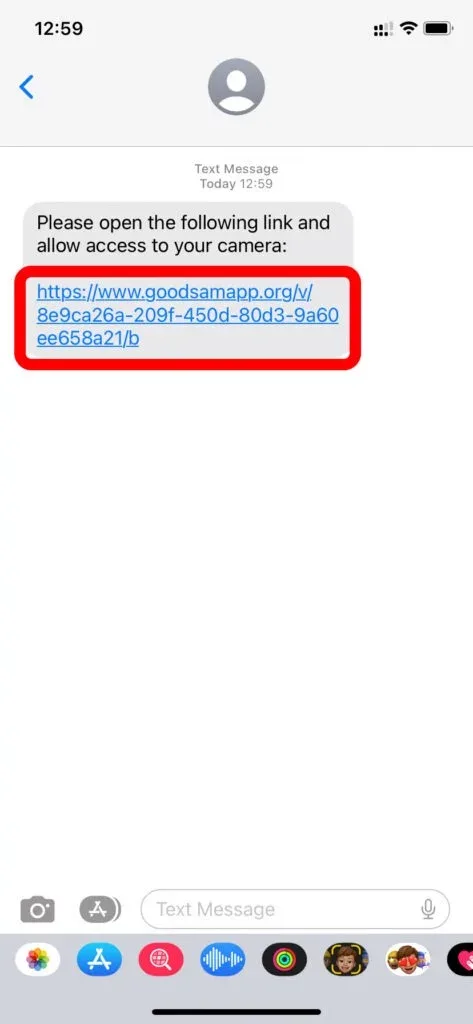
- An SMS link will be generated and sent to the mobile device being used to transmit video for the video consult.
- Click on the link which will launch the GoodSAM web application.
Step 3
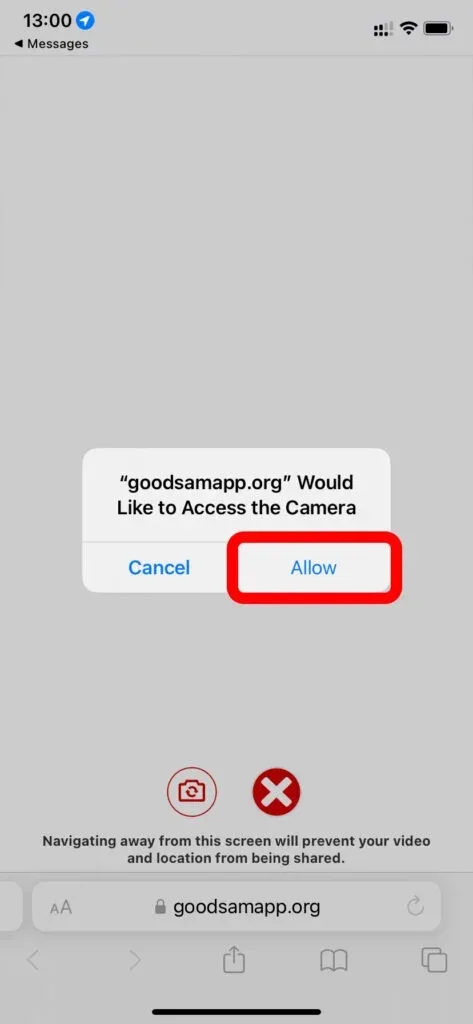
- Once in the GoodSAM web application, the user will be prompted to provide permission in order to access the device’s camera and microphone and location. Click “Allow” access.
Step 4
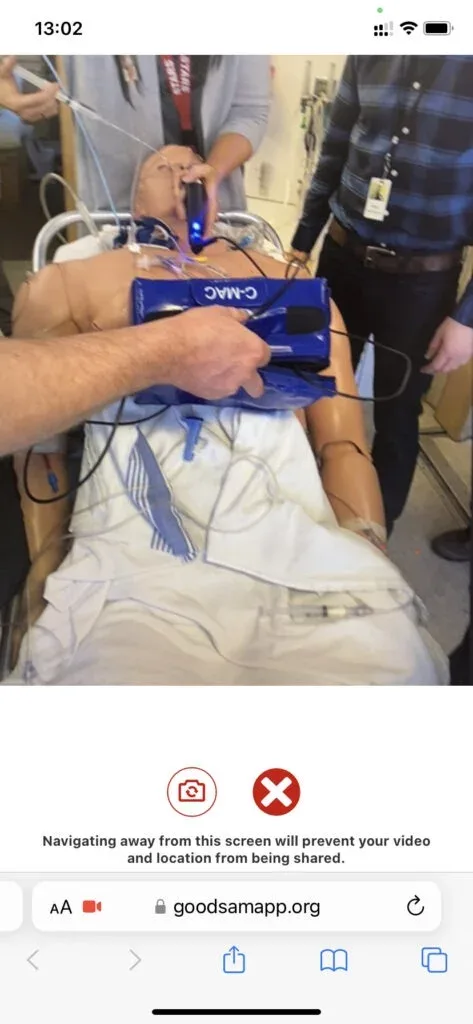
- The GoodSAM video link will then be live. Please note that video transmission is one-way (ie the transport physician will not be visible through the sending device). Maintain the ongoing telephone connection as voice is not transmitted through the video feed.
- Once the video transmission is live, do not leave the GoodSAM web application as this will end live video streaming. If the user accidently exits the GoodSAM web application, simply re-click on the SMS link sent by the STARS ELC and live video transmission will be reinstated. If this occurs, the user may once again be prompted to grant permission to access the mobile device’s camera.
Step 5
- Stand at the foot of the patient’s bed, point the camera at the given target (patient) and hold the device steady. This allows for the most efficient video buffering and decreases the likelihood of video pixilation and lag.
- Wait for the transport physician / consultant to direct you where to pan the camera. If the user is asked to move the camera to another target, ensure the mobile device is panned to the new target in a slow and smooth fashion.
Step 6
- Once the video consult is completed the STARS Emergency Link Centre will end the video consult call for all parties.
Step 7
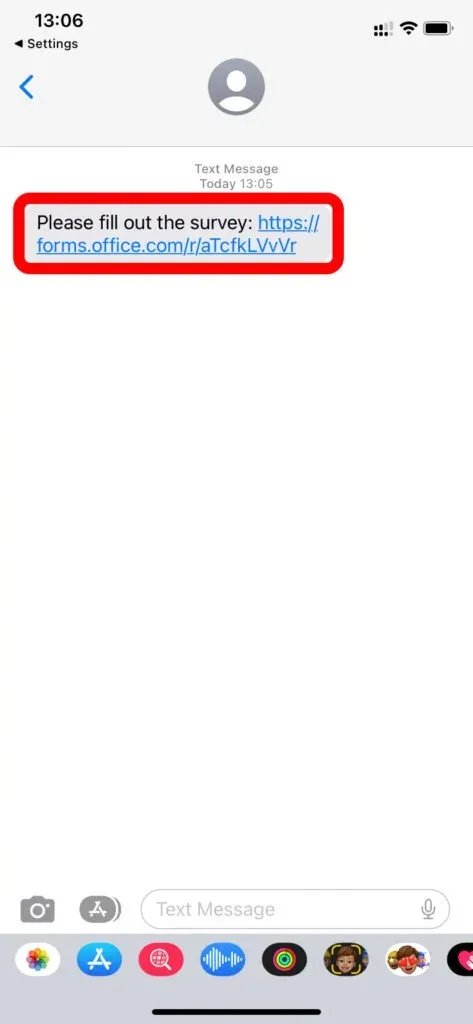
- After the video consult is complete, the user will receive an additional SMS from the STARS ELC with a link to an evaluation survey. Please select the role that best reflects your involvement with the patient and fill out the survey accordingly.
Receiving Video
Transport physicians, specialist consultants, specialty transport teams, air medical crew, or other healthcare providers supporting a consultation process will use their mobile device to watch video being transmitted. By being able to see the patient, the video consult process offers a more fulsome understanding of a patient’s condition and allows for more timely and contextually nuanced assistance. Users receiving video are in a “view-only” mode and their cameras are not active. Audio is maintained through the ongoing telephone consult (no need to leave a re-establish a new call), and video is transmitted through the GoodSAM web link sent by the STARS ELC.
Instructions
Step 1
- The STARS ELC will request the mobile number of the device that will be used to View the video consult.
- Ensure the mobile device being used to view the video consult is also on speaker phone. It is important to be cognisant of the communication and verbal transfer of private patient information while on speaker phone.
Step 2
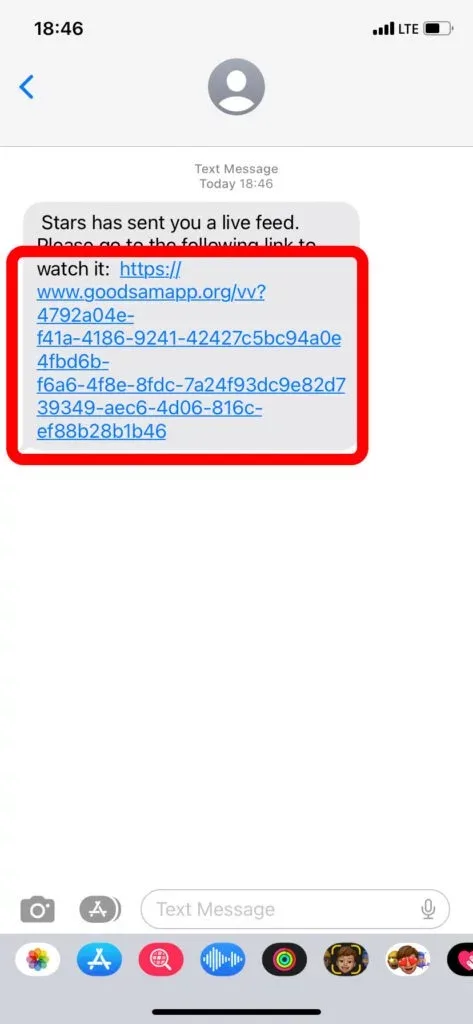
- A SMS link will be generated and sent to the mobile device being used to view the video consult.
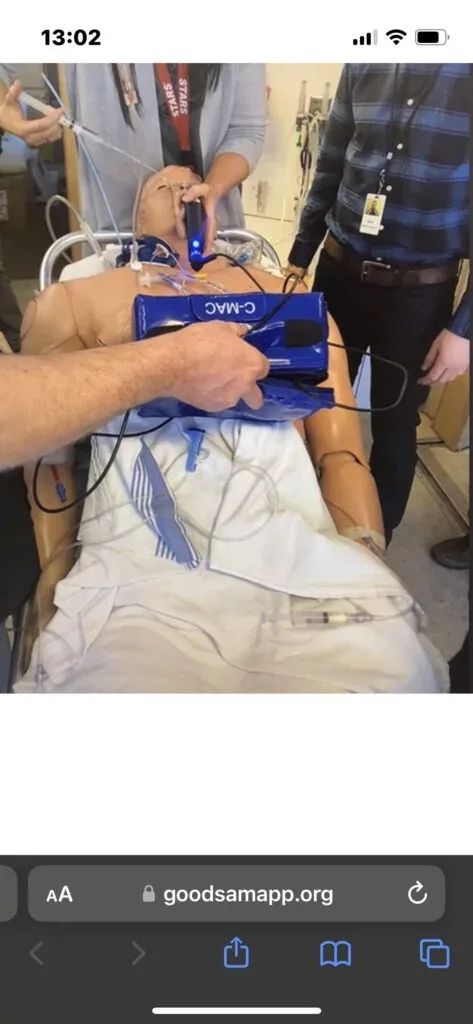
- Click on the link, which will launch the GoodSAM web application, where they will be able to view the video consult taking place.
- Once the video link is live, maintain telephone connection as voice is not transmitted through the video feed.
Step 3
- Once the video consult is completed, the STARS ELC will end the call for all parties.
Step 4
- After the video consult is complete, the user will receive an additional SMS from the STARS ELC with a link to an evaluation survey. Please select the role that best reflects your involvement with the patient and fill out the survey accordingly.
Troubleshooting
-
Video buffering
- Ensure users are connected to Wi-Fi, if possible
- Ensure power-save mode on mobile device is turned off.
- IOS: Settings > Battery > Low Power mode. Ensure this is turned off
- Android: At the top of the mobile device, swipe down and ensure battery saver is off
- Refresh internet browser
-
Video pixelated
- Ensure users are connected to Wi-Fi, if possible
- Ensure user holds mobile device steady on target and to pan slowly if required to.
- Ensure power-save mode of mobile device is turned off.
- IOS: Settings > Battery > Low Power mode. Ensure this is turned off
- Android: At the top of the mobile device, swipe down and ensure battery saver is off
-
Microphone and video permissions
- Update browser setting on mobile device to “always allow” video and microphone use.
- Go to Settings > Safari > Camera and select Allow
- Go to Settings > Safari > Microphone and select Allow
- If actively in a video conference call, click the red camera in the web address bar Website settings > Camera and select Allow. Complete this same step for the microphone settings
- Update browser setting on mobile device to “always allow” video and microphone use.
-
Video turning off during call
- Ensure user remains on the GoodSAM web application.
- If the user accidentally exits the GoodSAM web application during a call, simply re-click on the SMS link sent by the STARS ELC and live video transmission will be reinstated. If this occurs the user may once again be promoted to grant access to the mobile device’s camera. This may occur if the user hits the mute button on the mobile device as the user has exited the GoodSAM web application. Ensure that the mobile device is left on speaker phone for the duration of the video consult call. If the user does hit mute, simply unmute the mobile device and navigate back to the GoodSAM web application on the web browser and the video transmission will be reinstated.
-
Flickering play/pause button
- Refresh the mobile device’s web browser
- Re-click the SMS GoodSAM link
-
Unable to load GoodSAM webpage after clicking the link sent in the SMS
- Clear browser cookies.
- For Safari: Go to Settings > Apps > Safari on your device > Tap Clear History and Website Data.
- For Google Chrome: Open the Chrome app > Tap on the three dots found on the top right > Tap history > Tap clear browsing data > Select browsing history and cookies and site data > Tap clear data.
- For employer secured mobile devices, check with your organization IT Team to ensure the GoodSAM webpage is classified as a trusted URL (whitelisted).
- Clear browser cookies.